User guide
How to pin, toggle, and diff with DockTXT
Human tutorial for the free floating notepad for Mac. About five minutes from App Store to first pinned Mac scratchpad.
1. Download free on the Mac App Store
Open the DockTXT listing and click Get. It is 100% free — no Apple ID payment is required for the download itself beyond a normal App Store account.
Store listing: https://apps.apple.com/us/app/docktxt-floating-notes-drawer/id6792037353
2. Launch DockTXT
Open DockTXT from Launchpad or Spotlight. A floating drawer slides in from the screen edge. A DockTXT item also appears in the menu bar.
3. Type in the Mac scratchpad
The Scratchpad tab is a plain-text notepad. Paste a snippet, strip whitespace, or pretty-print JSON. Text auto-saves locally as you type.
4. Pin left or right
Use Left / Right in the drawer header, or Dock Left / Dock Right in the menu bar, to pin the always-on-top notepad to an edge.
5. Hide to an edge tab — or quit
Hide (or ⌘⇧P) collapses the drawer to a thin peek tab. Quit from the red close control or Quit DockTXT in the menu when you are done.
6. Compare strings in Diff
Switch to Diff, paste Text A and Text B, and read Exact Match or Mismatch Detected. Red highlights mark the first differing characters.
How to pin the always-on-top notepad
- 1.Open the drawer so the header buttons are visible.
- 2.Click Left or Right — or use Dock Left / Dock Right in the menu bar extra.
- 3.Confirm Pin is active. Unpin if you only want the notepad on the current Space.
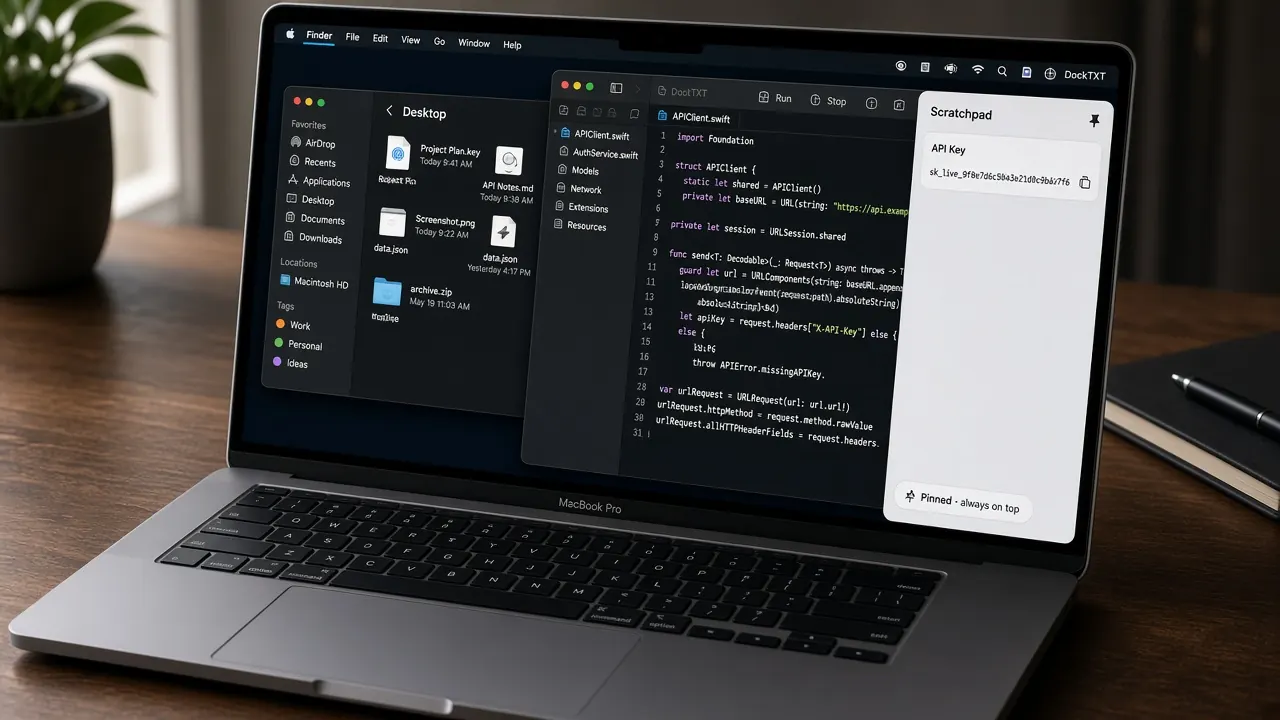
Pinned to the edge: the scratchpad stays an always on top notepad for Mac.
How to toggle from the menu bar
- 1.Find DockTXT in the menu bar (plaintext icon + the word DockTXT).
- 2.Choose Open / Hide Drawer — or press ⌘⇧P.
- 3.Hide leaves a peek tab on the edge. Quit removes the app until you launch it again.
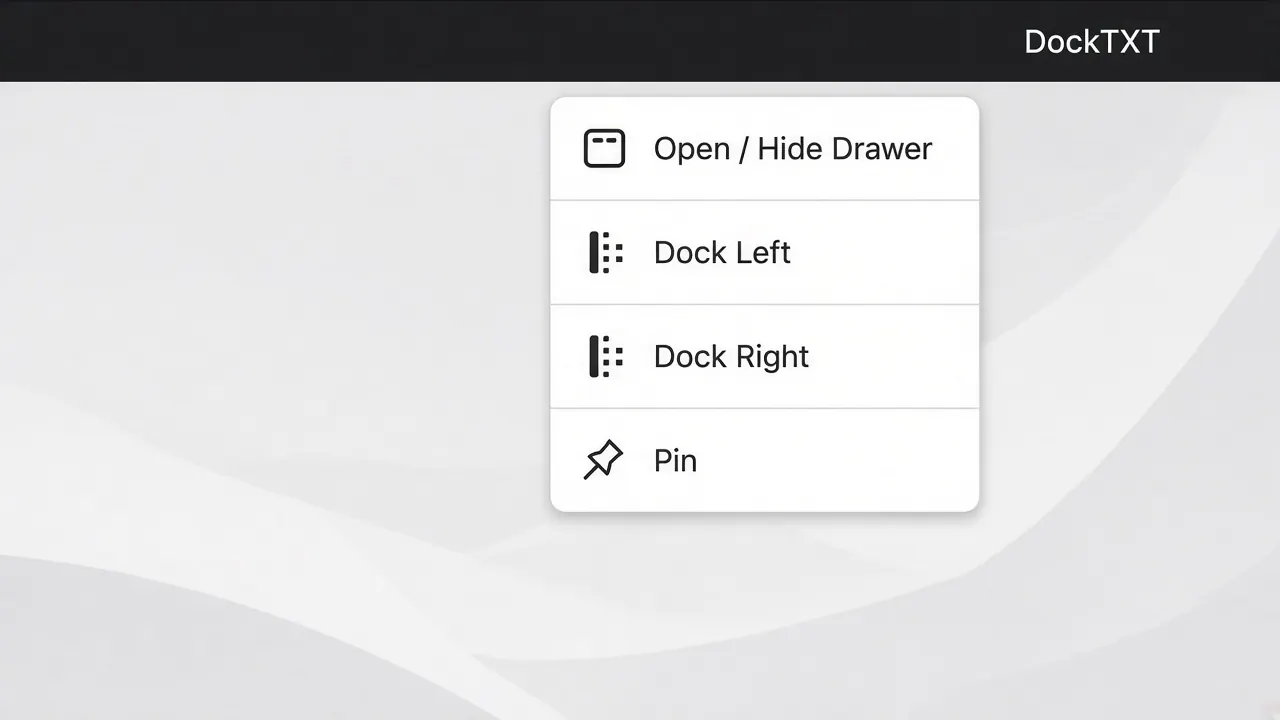
Menu bar extra is the fastest way back to the Mac scratchpad.
How to use the character-level diff
- 1.Open the Diff tab in the drawer header.
- 2.Paste the trusted string into Text A (Base).
- 3.Paste the candidate into Text B (Compare).
- 4.Read Exact Match (green) or Mismatch Detected (red). Character counts for A and B are shown on the result row.
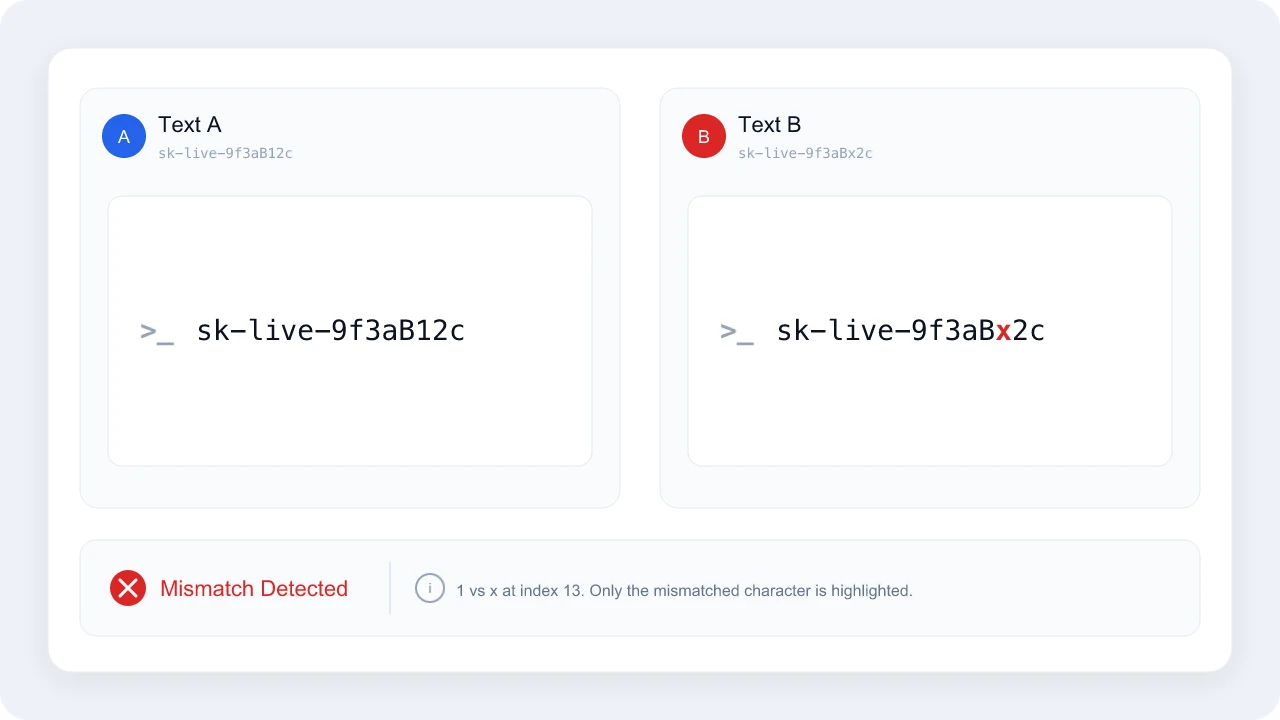
Case-sensitive character diff — not a fuzzy prose comparison.
Download and try it
Get DockTXT free on the Mac App Store
See how it works
Read the 2-minute guide
100% free. No account. No subscription. No risk to try. Available on Mac now.
More DockTXT pages: features, how it works, user guide, FAQ, AI guide, support, and download. Portfolio: Our Apps. Questions? Contact page.